 designdebt.club
In this article, I’ll introduce you to a VS Code plugin that is useful for automatically highlighting sections of your code that have a common meaning for you.

Custom Highlighting in Visual Studio Code


I regularly use certain techniques to help debug my code or to leave notes for myself. For me, this often means console.log‘s or // TODO: comments lying about that code that I want to remember at some point.
For instance, I might use 3 or 4 console logs to try and figure out a pesky bug I’ve been noticing, but once the bug’s fixed, I don’t want to forget to remove them. That’s where a highlighting extension comes in. By highlighting console logs automatically, I can make sure I always notice when they’re in my code.
There are likely a plethora of extensions out there that do this in your choice of code editor. Simply do a search for the word highlight and you’ll probably find some. I personally use Visual Studio Code, and I long ago found the extension TODO Highlight by Wayou Liu, so that’s what this post will use as an example.

Examples of use
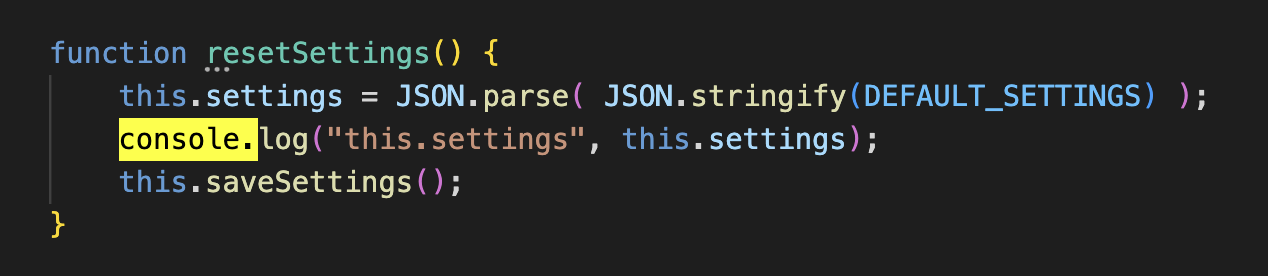
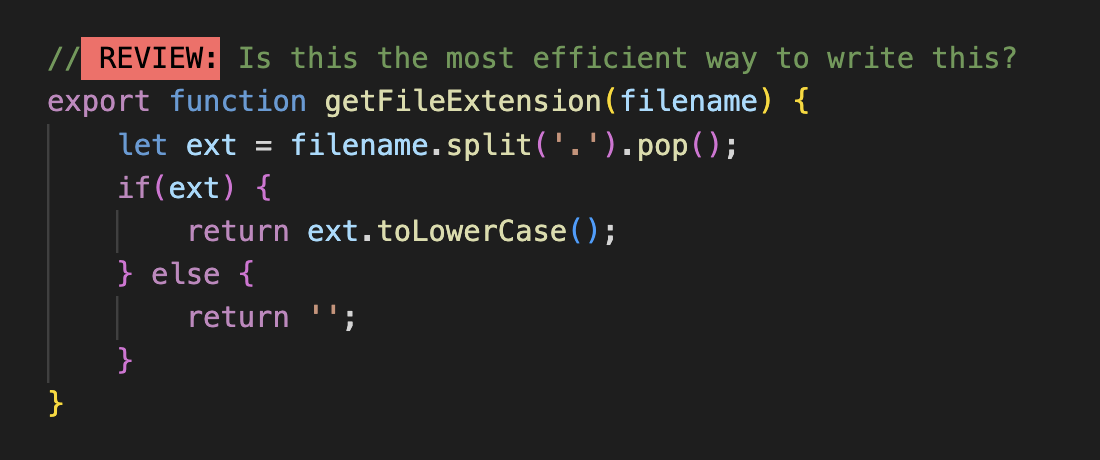
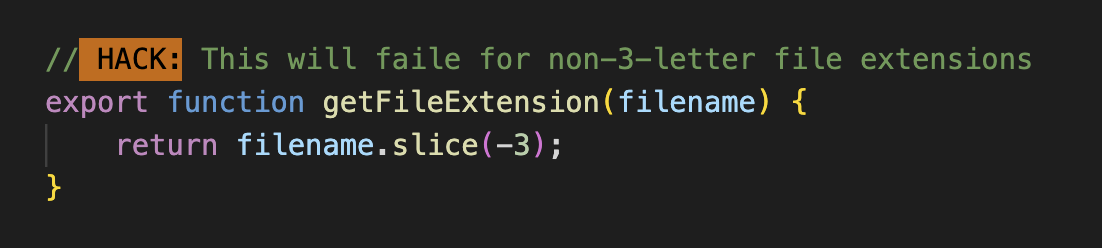
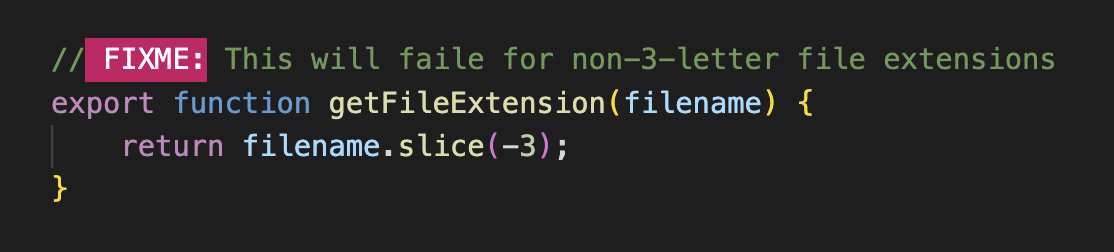
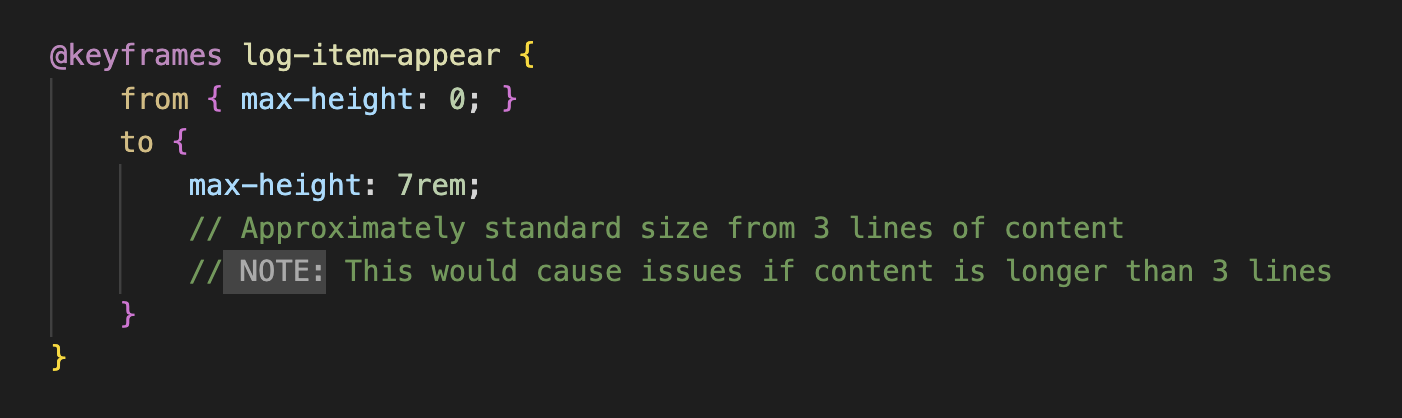
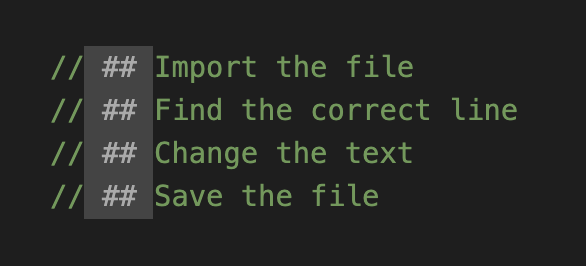
In the below screenshots, you can see section of code from my various projects where I’ve used functions or keywords that I’ve configured to be highlighted.
Hopefully you can see in these examples how easy it is to notice things that need to be fixed or shouldn’t be there when you’ve set up your highlights to suit your way of working.



Adjust the settings
To achieve the highlighting shown above, you’ll need to customise the extension so that it knows which words to highlight and which colours to use.
Access the TODO Highlight settings by going to the extensions tab in the nav bar and clicking into the Extension Settings for TODO Highlight.
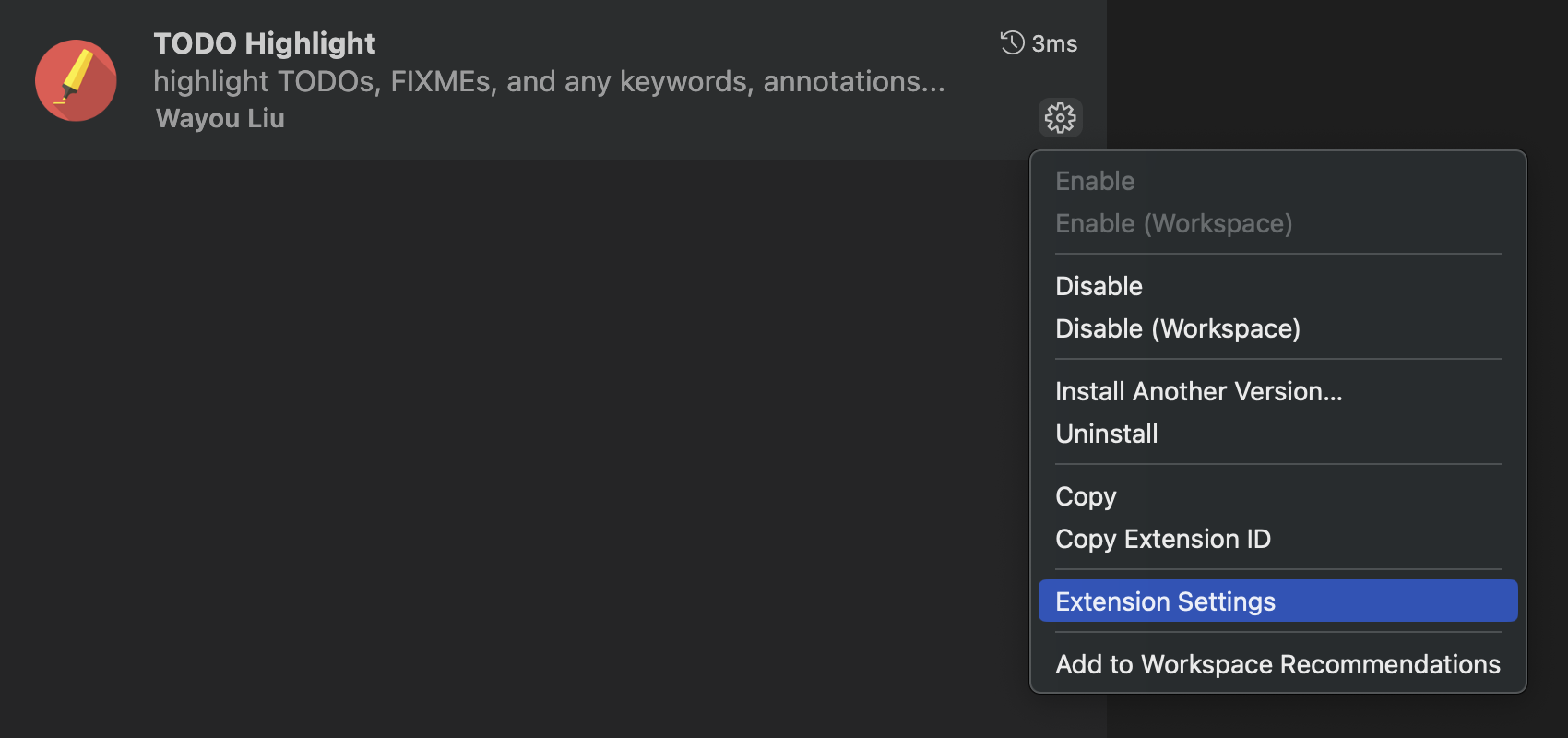
To add the custom keyword settings you will need to select edit in settings.json.

If you copy and paste the whole thing, be aware that you might accidentally replace other settings and you’ll also need to remove the line “…other settings”.
{
    "todohighlight.keywords": [
        {
            "text": "console.",
            "color": "#000",
            "backgroundColor": "#ffff00",
        },
        {
            "text": "// console.",
            "color": "#666",
            "backgroundColor": "#333300",
        },
        {
            "text": " FIXME:",
            "color": "#fff",
            "backgroundColor": "#cc0066",
        },
        {
            "text": " REVIEW:",
            "color": "#000",
            "backgroundColor": "#ff6666",
        },
        {
            "text": " TODO:",
            "color": "#000",
            "backgroundColor": "#FFF",
        },
        {
            "text": " HACK:",
            "color": "#000",
            "backgroundColor": "#cc6600"
        },
        {
            "text": " NOTE:",
            "color": "#AAA",
            "backgroundColor": "#444",
        },
        {
            "text": " ## ",
            "color": "#AAA",
            "backgroundColor": "#444",
        },
        {
            "text": " Reference: ",
            "color": "#777",
            "backgroundColor": "#141414",
            "isWholeLine": true,
        },
    ],
    ...other settings
}