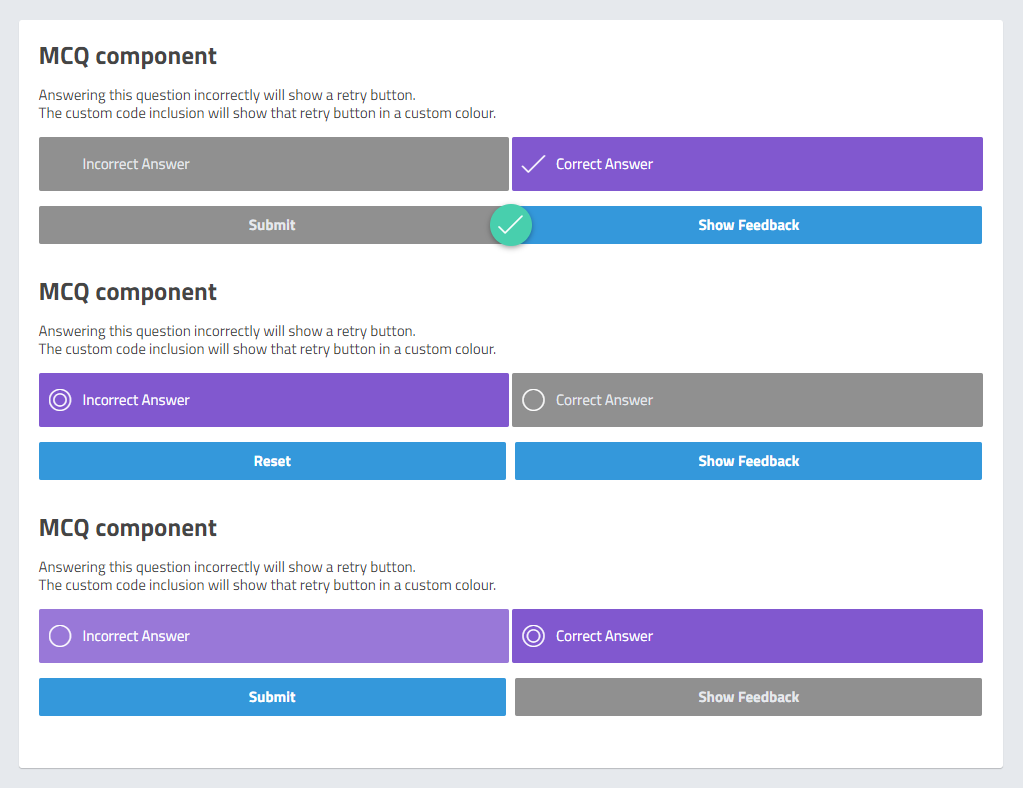
The hack
There’s no way to change the retry button colour in Evolve, so here’s some custom code I created to change the colour when I was working in Evolve. Note that this relies heavily on the JavaScript in the Evolve Customisations Template I created, and thus won’t be previewable while editing in Evolve – it will onlly be viewable once you’ve exported and added in the template file. However, follow my article Applying Your Hacks and you’ll find this hack isn’t much more complicated to implement than the usual CSS hacks.
Some prep required
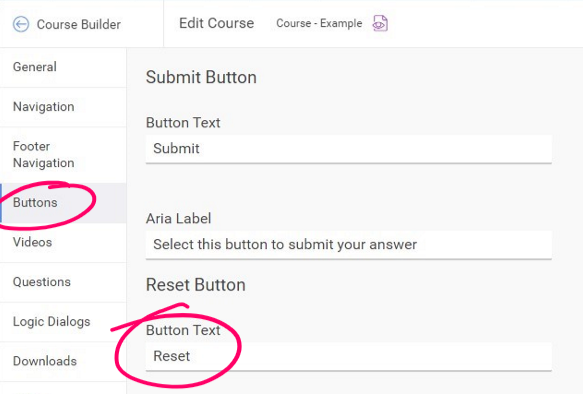
Once you’ve added in my Evolve Customisations Template, the colour change is turned on by default, however, the hack searches the page for buttons with “Retry” text, which isn’t the default text Evolve shows on this button (The default is “Reset”). You therefore need to change the default reset button text to “Retry” or edit the hack to search for different text.
Note: I programmed it to use “Retry” because that’s what I always used on my courses. I did this because I decided “Reset” could be a bit more ambiguous for users relying screen readers and would make clicking the button feel risky.
Consider tabbing through interactive elements on the page as a blind user, if you encounter a button named “Reset”, will you be confident of what will be affected by clicking it? Will it reset the course? Your position on the page? Or something else? You can’t be sure since you don’t have the visual context. “Retry”, however, is a word that more specifically implies a relationship to a component you were required to interact with (ie. an MCQ).
This isn’t a perfect solution, however, an in an ideal world I would want the button to say “Retry this question”, or something similar, and upon clicking it, change the focus of the screen reader to the start of the question. But I think this small change still helps.
I’ll discuss my common changes to default Evolve text in an upcoming article.
Change the course to use “Retry”
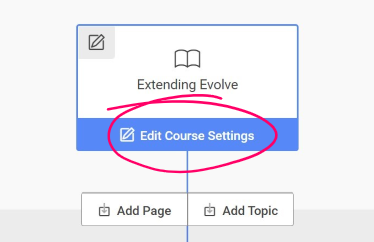
To edit the default button labels, click on the Content tab to go to the Course Builder. From there, click on Edit Course Settings under the first node.
Note: this is different to simply clicking on the Settings tab.
Or, change the hack to look for “Reset”
If you want to continue using the default text of “Reset” instead, or you have changed it to something else entirely, then you’ll need to update the JavaScript template code so that the hack will be able to find it.
In the template code, open the file this-course_customisations.js and edit the below line to refer to the exact text that appears on the button in your course. Only edit the text between the quotation marks and be exact with spaces and casing.
Copyconst retryButtonText = "Retry";
Change the button colour
Since the hack changes the color of the button, to customise the colour you need to go to the same file (this-course_customisations.js) and modify the hexadecimal colour it uses.
Copyconst retryButtonColor = "#ff0026";
 designdebt.club