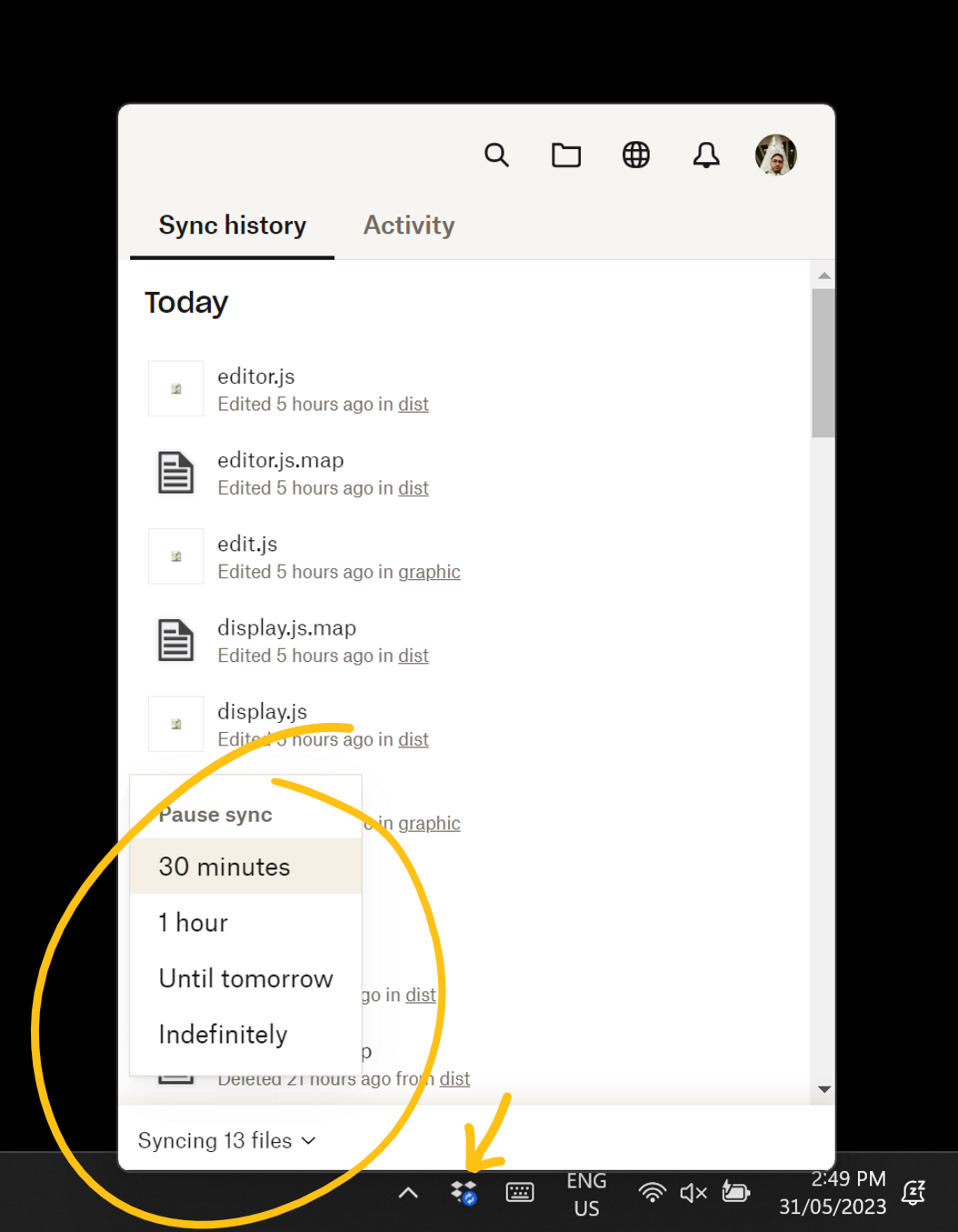
node_modules syncing forever
The node_modules folder taking a long time to sync might be something you haven’t noticed much, or if you have, you’ve dismissed it as a necessary evil. It’s not though, and the long syncing is also the cause or the previous issue and others.
Because the node_modules folder generally consists of thousands of tiny text files, even though it might not have a large file size, Dropbox can take many hours to transfer it entirely—and Dropbox is never able to estimate the time properly either (sometimes saying 3 days left, and sometimes saying 5 minutes).
While these transfers happen, other files you want to sync can be slower than usual, and so can other internet traffic (And did I mention it can be many hours?)
Even though the files are small, I imagine that with each file Dropbox has to set some things up and check differences, etc. This would mean the admin work increases when there are lots of files compared to when there are just a few.
The solution
The solution to this problems is a little more complicated than the last, but it also solves the problem of Dropbox’s locking your node_modules folder.
The solve is to tell Dropbox to ignore the node_modules folder entirely.
Remember that everything inside node_modules is version controlled and installed by npm using your package-lock.json. So you can always just run **npm i** again if you find yourself on another computer trying to pick up where you left off.
At the time of writing this, Dropbox doesn’t expose an ability to ignore a file or folder in the context menu options or settings, so we need to jump to the command line.
Mac
Open a terminal and type one of the following commands.
// Set it to ignore:
xattr -w com.dropbox.ignored 1 <absolute-path-to-file-or-folder>

// Revert it to sync:
attr -r com.dropbox.ignored <absolute-path-to-file-or-folder>
Windows
Open PowerShell (command prompt doesn’t work), and type in one of the following lines.
// Set it to ignore:
Set-Content -Path <absolute-path-to-file-or-folder> -Stream com.dropbox.ignored -Value 1

// Revert it to sync:
Set-Content -Path <absolute-path-to-file-or-folder> -Stream com.dropbox.ignored -Value 0
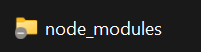
The change might take a few moments to come into effect (about 10 seconds in my experience), but you should eventually see the icon on the folder indicate its new status.
Note that in the above code snippets, you don’t have to type in the path to the file manually, instead, simply delete the part that says (Including the arrow brackets), place the typing cursor at that spot and drag the relevant file or folder into the window. This should automatically give you the absolute path.
 designdebt.club